


MimirAI is a private, always-on-top Windows assistant for live calls and conversations. It transcribes system audio and, optionally, your microphone, then turns the live context into concise answers, notes, follow-up questions, and practical guidance.
MimirAI is similar to Cluely but completely free and requires no subscription. It runs locally on your system but uses OpenAI's API for transcription & AI analysis.
MimirAI can be used for meetings, calls, and much more. The app has a full onboarding process teaching users how to use it.
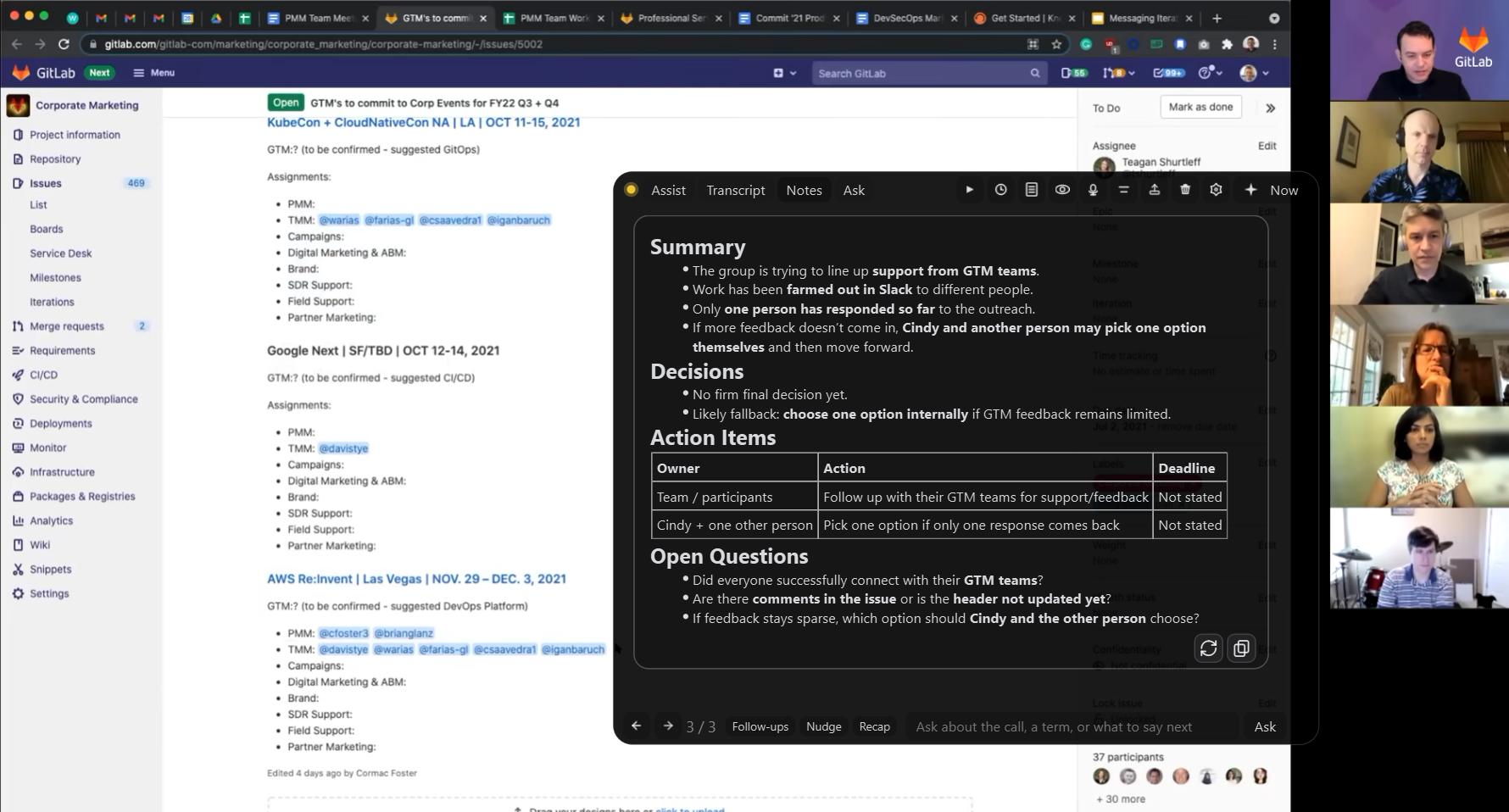
- Realtime transcription of system audio with optional microphone capture
- Separate
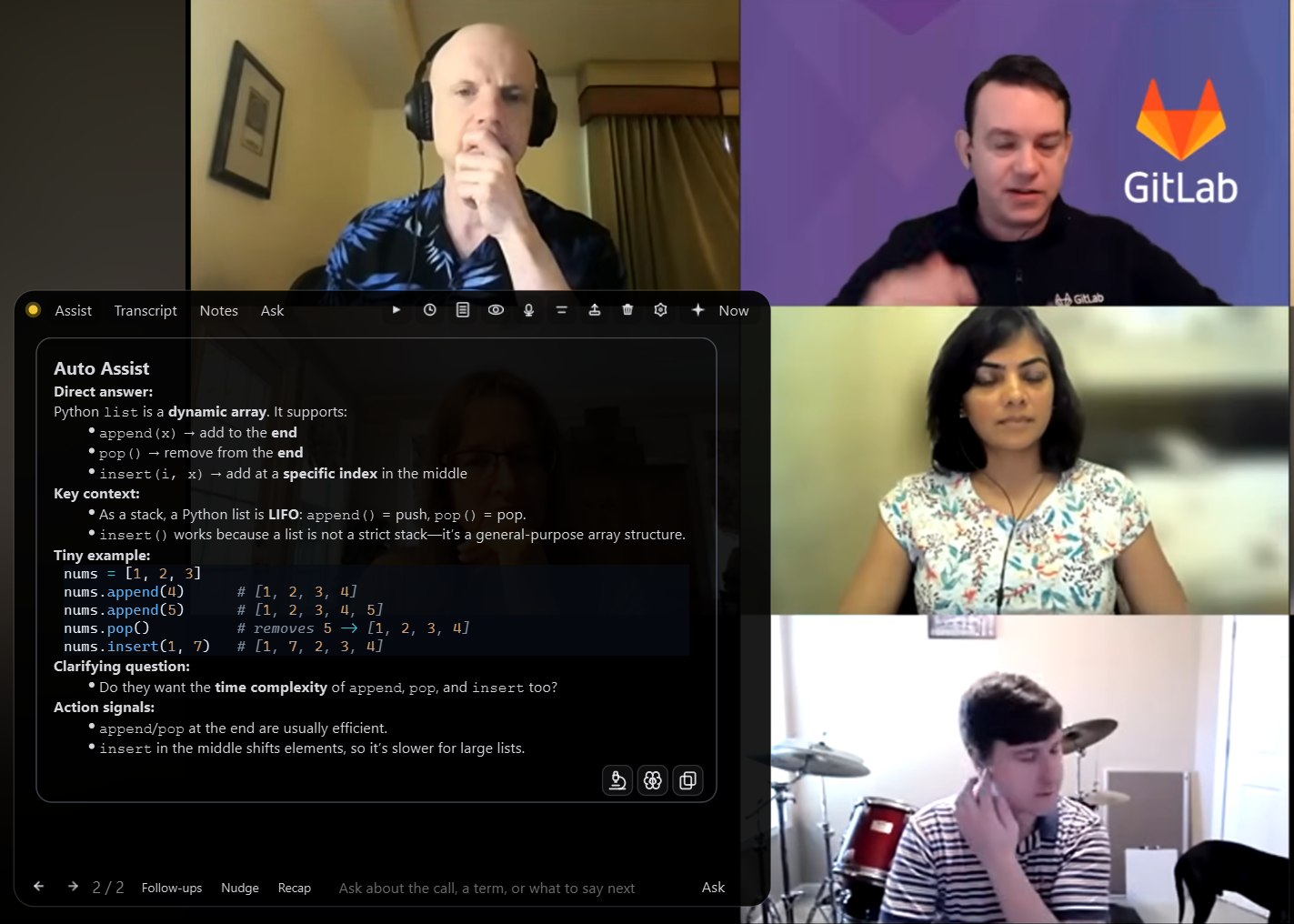
[SYSTEM],[USER], and screenshot-derived[VISUAL]context - On-demand and automatic Smart Assist responses
- Ask, Deeper, Follow-ups, Nudge, Recap, and web-capable Smarter actions
- Live meeting notes with decisions, action items, and open questions
- Capture-excluded, always-on-top overlay with compact and panel modes
- Screenshot selection for visual troubleshooting and context
- Transcript and AI-response export
- System tray controls and global keyboard shortcuts
- API-key storage through Windows Credential Manager with a DPAPI fallback
- Windows 10 or 11
- Python 3.10 or newer
- An OpenAI API key with available API credits
- Working system-audio output; a microphone is optional
Audio and selected screenshots are sent to OpenAI when the related features are used. API usage is billed by OpenAI. Capture exclusion is a Windows best-effort feature and may not work with every recording or screen-sharing application. Use Mimir only where you have permission to capture and process audio.
git clone <repository-url>
cd MimirAI
python -m venv .venv
.\.venv\Scripts\Activate.ps1
python -m pip install -r requirements.txt
python -m mimir
The first-run guide requests audio-processing consent and an OpenAI API key. You can instead set OPENAI_API_KEY before launch. Saved settings are stored under %APPDATA%\Mimir.
- Double-click the compact overlay to open the full panel.
- Use Assist for live guidance, Transcript for finalized speech, Notes for meeting notes, and Ask for transcript-aware questions.
- Toggle microphone capture from the toolbar or tray when you want your speech included.
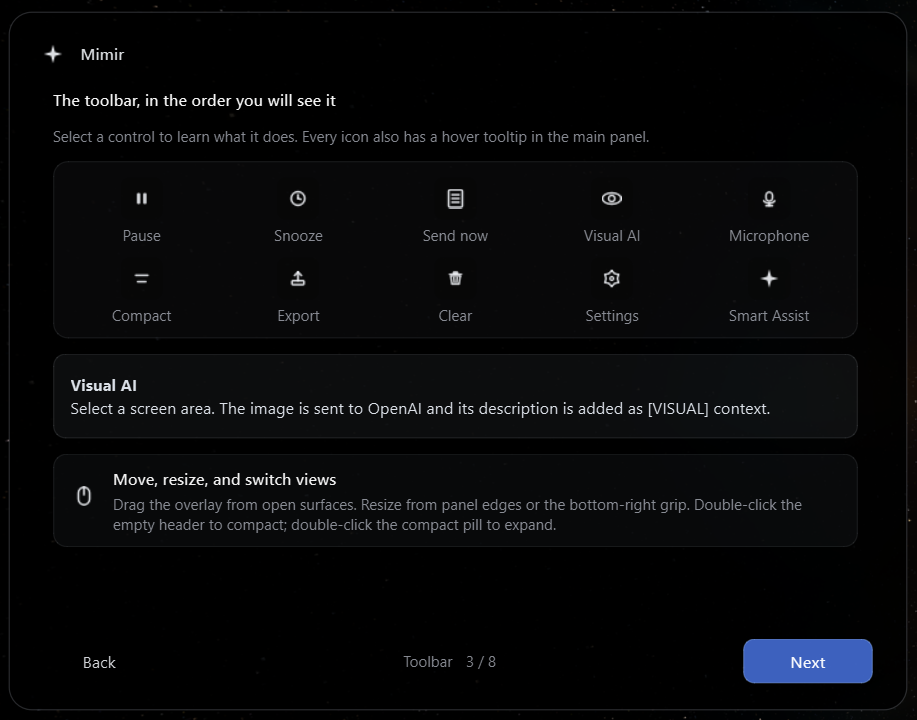
- Use the eye button to select a screen region and add visual context.
- Open Settings to configure models, language, timing, audio detection, privacy, appearance, and custom AI context.
| Shortcut | Action |
|---|---|
Ctrl+Enter |
Smart Assist |
Ctrl+Shift+H |
Show or hide Mimir |
Ctrl+Shift+M |
Pause or resume listening |
.\scripts\build.ps1 -CleanThe executable is written to dist\Mimir.exe.
MIT. See LICENSE.